Software Update Samsung J7: Complete Guide to Update, Fix Issues & Improve Performance
Introduction to Software Update Samsung J7
The term software update Samsung J7 refers to the process of upgrading your phone’s operating system and internal software to a newer version provided by Samsung Electronics. These updates are designed to improve your phone’s performance, fix bugs, enhance security, and sometimes introduce new features.
Many users ignore updates because they think their phone is already working fine. However, skipping updates can lead to slower performance, security risks, and compatibility issues with modern apps. Understanding how updates work and why they matter can help you get the best experience from your Samsung J7 device.
Overview of Samsung Galaxy J7 Series
The Samsung Galaxy J7 series includes multiple models released over several years. Each model differs in hardware and supported software versions.
Different Models of Samsung J7
The most popular models include:
- Samsung Galaxy J7 (2015)
- Samsung Galaxy J7 (2016)
- Samsung Galaxy J7 Prime
- Samsung Galaxy J7 Pro
Each version came with different specifications and Android versions, which directly affect how and whether updates are available.
Android Versions Supported
Below is a simple table to understand update support:
| Model | Launch Android Version | Last Official Update |
|---|---|---|
| J7 (2015) | Android 5.1 | Android 6.0 |
| J7 (2016) | Android 6.0 | Android 8.1 |
| J7 Prime | Android 6.0 | Android 9.0 |
| J7 Pro | Android 7.0 | Android 9.0 |
This shows that older models may no longer receive new updates, which is important when discussing software update Samsung J7.
What is a Software Update?
A software update is a package released by the manufacturer to improve the phone’s operating system.
Definition and Purpose
It updates the phone’s system files to make it faster, more secure, and more compatible with modern apps. Without updates, your phone may become outdated quickly.
Types of Updates
There are three main types of updates:
- System Updates
These bring major changes like a new Android version. - Security Updates
These fix vulnerabilities and protect your device from threats. - Feature Updates
These add small improvements such as new settings or UI changes.
Benefits of Updating Samsung J7
Updating your phone regularly provides several important advantages. When performing a software update Samsung J7, users often notice immediate improvements.
First, performance becomes smoother because bugs and system errors are fixed. Second, updates improve security by patching vulnerabilities that hackers may exploit. Third, compatibility with apps improves, allowing you to use newer versions of applications without crashes.
Additionally, updates can extend the life of your device by keeping it optimized and stable.
Requirements Before Updating Samsung J7
Before starting a software update Samsung J7, it is important to prepare your device properly.
Key Requirements
- A stable Wi-Fi connection is necessary because updates can be large in size
- Battery should be at least 50% to avoid interruption
- Sufficient storage space must be available
- Backup of important data is highly recommended
Failing to meet these requirements can lead to update failure or data loss.
How to Check Software Update on Samsung J7
Checking for updates is a simple process that any user can follow.
Step-by-Step Guide
To check for updates:
- Open the Settings menu
- Scroll down and tap on “About Phone”
- Select “Software Update”
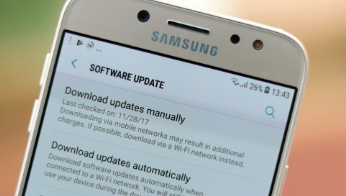
- Tap on “Download Updates Manually” or “Check for Updates”
If an update is available, your phone will display a notification.
Automatic vs Manual Updates
Automatic updates happen in the background when enabled, while manual updates require user action. Manual checking is useful if you want to update immediately.
How to Download and Install Update
Once an update is available, the next step is downloading and installing it.
Download Process
The phone connects to Samsung servers and downloads the update file. This may take time depending on internet speed.
Installation Process
After downloading, the phone will restart and begin installation. During this time, the system files are replaced with updated versions.
Post-Update Setup
After installation, the phone optimizes apps and system performance. This may take a few minutes, and users may notice temporary slow performance during this phase.
Common Problems During Update
While performing software update Samsung J7, users may face several issues.
Update Not Showing
Sometimes no update appears because:
- Device is already up to date
- Region restrictions apply
- Device is too old
Download Stuck
This usually happens due to poor internet connection or insufficient storage.
Installation Failed
Possible reasons include:
- Low battery
- Corrupted download
- System errors
Solutions to Fix Update Issues
Most update problems can be solved with simple steps.
Effective Solutions
- Restart the phone to refresh the system
- Clear storage space to allow update installation
- Ensure strong Wi-Fi connection
- Reset settings if necessary
In extreme cases, a factory reset may be required, but it should be used as a last option.
Why Samsung J7 May Not Receive Updates
One important limitation of software update Samsung J7 is that older devices stop receiving updates.
This happens because manufacturers provide updates only for a limited time. Once the device becomes outdated, support ends. Hardware limitations also prevent newer Android versions from running smoothly on older devices.
Alternative Ways to Update Samsung J7
If official updates are not available, there are alternative methods.
Using Samsung Smart Switch
This method allows updating the phone via a computer. It is safer than manual methods and recommended for regular users.
Installing Custom ROM
Advanced users may install custom ROMs to get newer Android versions. However, this process is risky and can damage the phone if done incorrectly.
Safety Tips While Updating
To ensure a safe update process, users should follow certain precautions.
Avoid turning off the phone during the update, as it can cause system damage. Do not use the device heavily while updating. Always use official updates from Samsung to avoid security risks.
How to Check Current Software Version
Users can easily check their current software version by:
- Opening Settings
- Going to About Phone
- Viewing Android Version and Software Information
This helps determine whether an update is needed.
Frequently Asked Questions (FAQs)
1. Why is my Samsung J7 not updating?
Your device may be too old or already running the latest supported version.
2. Can I upgrade Samsung J7 to latest Android?
Only if your model supports it. Otherwise, custom ROM is required.
3. Is software update safe?
Yes, if done using official methods.
4. How long does update take?
Usually between 10 to 30 minutes depending on update size.
5. Will update delete my data?
Normally no, but backing up data is always recommended.
Conclusion
The process of software update Samsung J7 is essential for maintaining your device’s performance, security, and usability. While older models may have limitations in receiving updates, understanding the correct methods and precautions ensures a smooth experience.
By regularly checking for updates, preparing your device properly, and following safe practices, you can extend the life of your Samsung J7 and enjoy a better smartphone experience.